Many players may want a fresh Nether to explore and to find new fortresses to loot and raid. This guide will teach you how to reset your Nether for a Bedrock Edition server.
Unfortunately, this can only be performed on the Windows version of Minecraft: Bedrock edition. There is no other way to reset the Nether on other devices.
How to Reset the Nether on Your Minecraft Bedrock Server
To reset the Nether, you will need to edit your world using the program AmuletMC. You can find a download here.
- Download Amulet from the official website and extract its
.ZIPfile
2. Go to the Amulet folder and open amulet_app.exe.
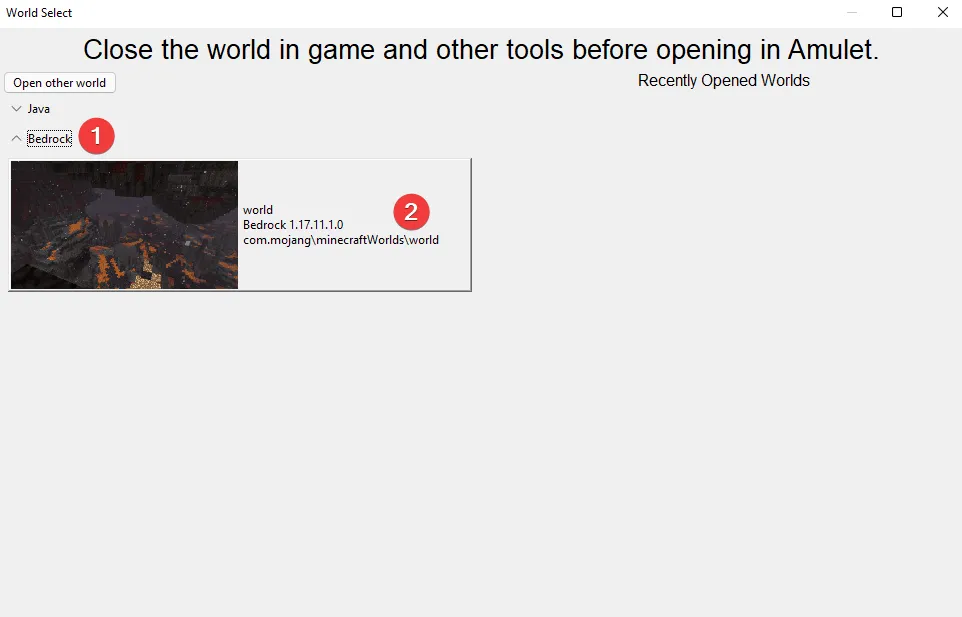
3.Select Open World and tick Bedrock, followed by the world of which you want to reset the Nether.
4.If you are unable to find the world, use the Open other world button in the top left to manually navigate to your saves folder.
If you haven't downloaded your Minecraft world from your server yet, follow our guide on this here.
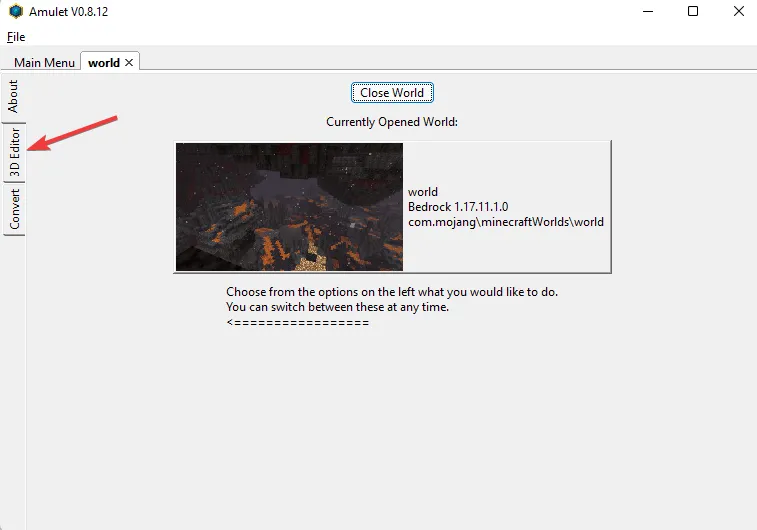
5. Click 3D Editor and wait for the program to load and install the needed resources.
6. Once the world has been loaded, at the right top, make sure to set your world view to 2D and change your world to minecraft:the_nether.
7. Now you can tick chunks at the bottom, and select Delete unselected chunks and select No in the new pop-up.
8. Once this has been done, you will see all the chunks turn black and grey. Now save the chunk by pressing File > Save
9. Re-upload your world back to your server, using our guide.